
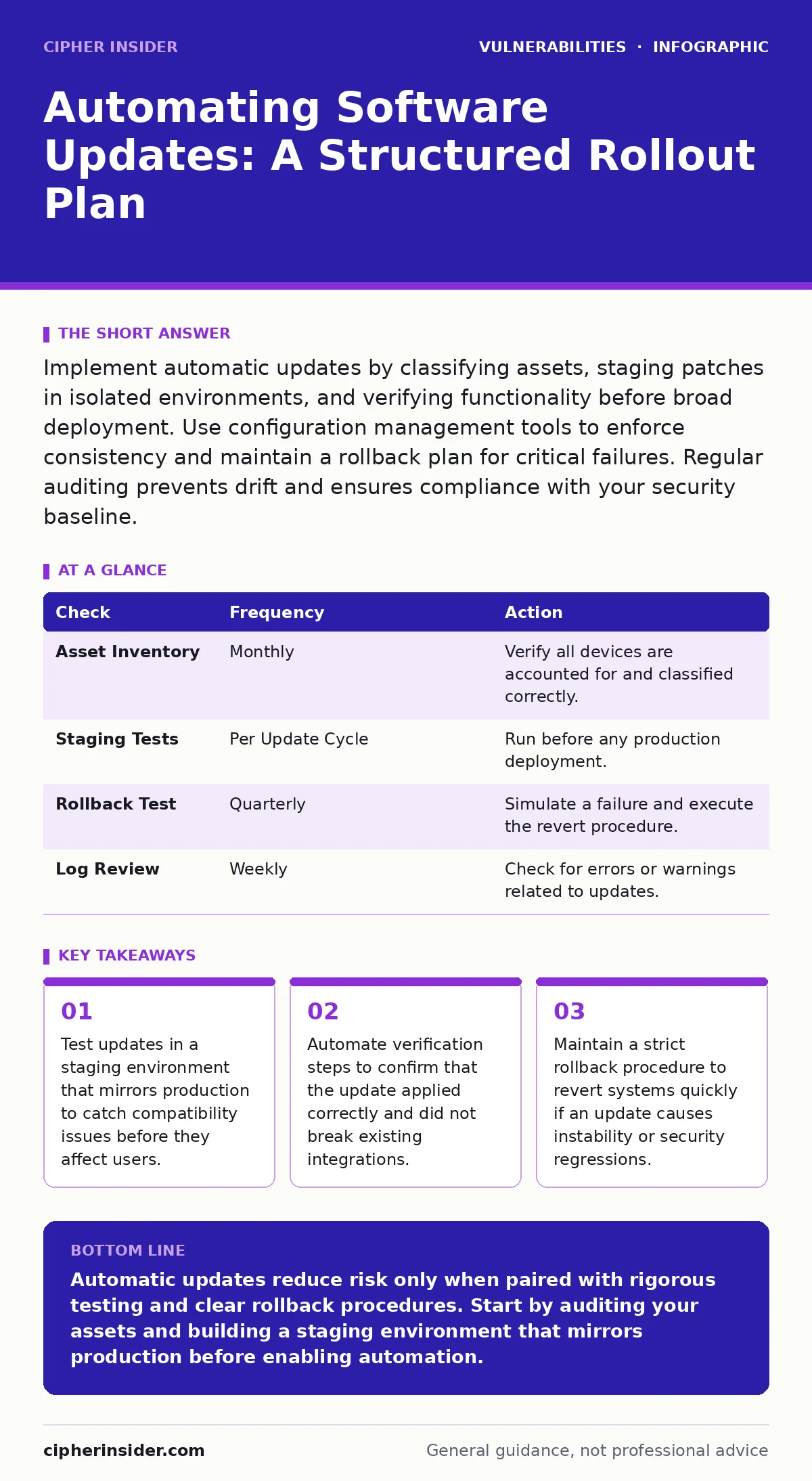
Implement automatic updates by classifying assets, staging patches in isolated environments, and verifying functionality before broad deployment. Use configuration management tools to enforce consistency and maintain a rollback plan for critical failures. Regular auditing prevents drift and ensures compliance with your security baseline.
Defining the Scope and Asset Inventory
You cannot automate what you cannot see. The first step in implementing automatic software updates is establishing a complete record of every device, server, and application in your environment. This process relies on maintaining an accurate IT asset inventory. Without this baseline, you risk missing critical endpoints or updating systems that should remain isolated for legacy compatibility.
Group your assets by function and criticality. A database server requires a different update strategy than a developer’s workstation. Define which systems need immediate patching and which can wait for extended testing. This classification determines the speed and rigor of your verification process.
Selecting the Deployment Mechanism
Choose a method that matches your infrastructure’s complexity. Small environments may use built-in operating system features, while larger organisations require configuration management tools or endpoint management platforms. These tools allow you to push updates, verify installation, and collect logs centrally.
Ensure your chosen mechanism supports conditional logic. You should be able to exclude specific applications or versions if they are known to cause conflicts. The tool must also provide clear feedback on success or failure, enabling you to identify problematic units without manual inspection of every machine.
Building a Staging Environment
Never deploy untested updates directly to production systems. Create a staging environment that replicates your production setup as closely as possible. This includes operating system versions, application dependencies, and network configurations. Deploy updates to this environment first to observe their behaviour.
Monitor the staging system for performance degradation, application crashes, or unexpected network traffic. If an update causes a service to fail, you have identified the issue before it impacts real users. This step is particularly important for complex applications where minor version changes can break integrations.
Numbered Rollout Steps
Step 1: Baseline Current State
Record the current version of all software and the status of key services. Take snapshots or backups of critical systems. This baseline allows you to compare pre- and post-update states. You will know exactly what changed and can revert if necessary.
Step 2: Deploy to Staging
Apply the update to your staging environment. Verify that all services start correctly and that existing functionality remains intact. Run automated tests if available. If the update fails or causes errors, halt the process and investigate the cause before proceeding.
Step 3: Pilot Group Deployment
Select a small group of non-critical production systems for the next phase. These should be devices that are easy to replace or restore. Apply the update and monitor for any issues over a set period. This group acts as a canary, alerting you to problems that did not appear in staging.
Step 4: Broad Deployment
Once the pilot group shows no adverse effects, deploy the update to the remaining systems. Use your configuration management tool to push the update in waves, not all at once. This approach limits the blast radius if a hidden issue emerges. Monitor logs and performance metrics closely during this phase.
Step 5: Verification and Cleanup
Confirm that all systems report the new version. Check that services are running and that users can access applications as expected. Remove any temporary files or configurations created during the update process. Document the outcome for future reference.
Checking the Implementation
You must verify that the update worked as intended. Do not assume that a successful installation means the system is functioning correctly. Check service logs for errors that may not have stopped the service but indicate underlying issues. Verify that security configurations were not reset or altered by the update.
Use automated scripts to query systems for their software versions. Compare this data against your deployment records. Any discrepancy indicates a failure that requires investigation. This step ensures consistency across your environment and prevents security gaps caused by missed patches.
See also: Secure Configuration Baselines for Small Businesses · Host Header Injection: Risks and Protection for Small Businesses
Ongoing Upkeep and Monitoring
Automatic updates are not a one-time setup. You must continuously monitor for new patches and assess their relevance. Establish a regular review cycle to evaluate the effectiveness of your update process. Adjust your staging and pilot procedures based on lessons learned from previous deployments.
Keep your configuration management rules up to date. As new applications are added or old ones removed, your update policies must reflect these changes. Regularly test your rollback procedures to ensure they work when needed. A broken rollback plan is as dangerous as a failed update.
| Check | Frequency | Action |
|---|---|---|
| Asset Inventory | Monthly | Verify all devices are accounted for and classified correctly. |
| Staging Tests | Per Update Cycle | Run before any production deployment. |
| Rollback Test | Quarterly | Simulate a failure and execute the revert procedure. |
| Log Review | Weekly | Check for errors or warnings related to updates. |
Handling Edge Cases and Exceptions
Some systems cannot be updated automatically. Legacy applications may depend on specific library versions that newer updates remove. Isolated research systems may require specific configurations that updates would overwrite. Identify these exceptions early and document them.
Create a manual update process for these systems. Ensure that someone is responsible for testing and applying patches to these devices. Do not ignore them; they often become the weakest link in your security posture. Regularly review whether these exceptions are still necessary or if the systems can be modernised.
Integrating with Security Testing
Automatic updates should complement your broader security strategy. Ensure that your dynamic application security testing (DAST) tools scan updated applications for new vulnerabilities. Updates can sometimes introduce new attack surfaces or break existing security controls.
Be aware that some vulnerabilities, such as command injection or NoSQL injection, may be mitigated by updates to underlying libraries. However, other issues like insecure direct object references (IDOR) often require code changes rather than simple patches. Understand the difference between platform updates and application fixes.
Refer to CWE weakness categories to understand the nature of the vulnerabilities your updates address. This knowledge helps you prioritise patches that fix high-risk issues. Remember that security misconfigurations can occur even after a successful update, so always verify your security settings post-deployment.
Key takeaways
- Test updates in a staging environment that mirrors production to catch compatibility issues before they affect users.
- Automate verification steps to confirm that the update applied correctly and did not break existing integrations.
- Maintain a strict rollback procedure to revert systems quickly if an update causes instability or security regressions.
Automatic updates reduce risk only when paired with rigorous testing and clear rollback procedures. Start by auditing your assets and building a staging environment that mirrors production before enabling automation.
Frequently asked questions
What happens if an update breaks a critical application?
Your rollback procedure allows you to revert the system to its previous state. Ensure you have tested this process and that backups are current.
Can I automate updates for all systems?
You should automate most systems but maintain manual control for legacy or isolated devices. Exceptions require documented processes and regular review.
How often should I test my rollback plan?
Test your rollback procedure at least quarterly. Regular testing ensures that the process works when you need it most and that documentation is accurate.
Do automatic updates protect against all attacks?
No. Updates patch known vulnerabilities but do not prevent misconfigurations, social engineering, or attacks on unpatched legacy systems. You must maintain a layered defence strategy.
How this guide was produced: written by the Cipher Insider editorial team with AI assistance, checked against the public references listed below, and reviewed when the facts change. See our editorial policy or report an error.