
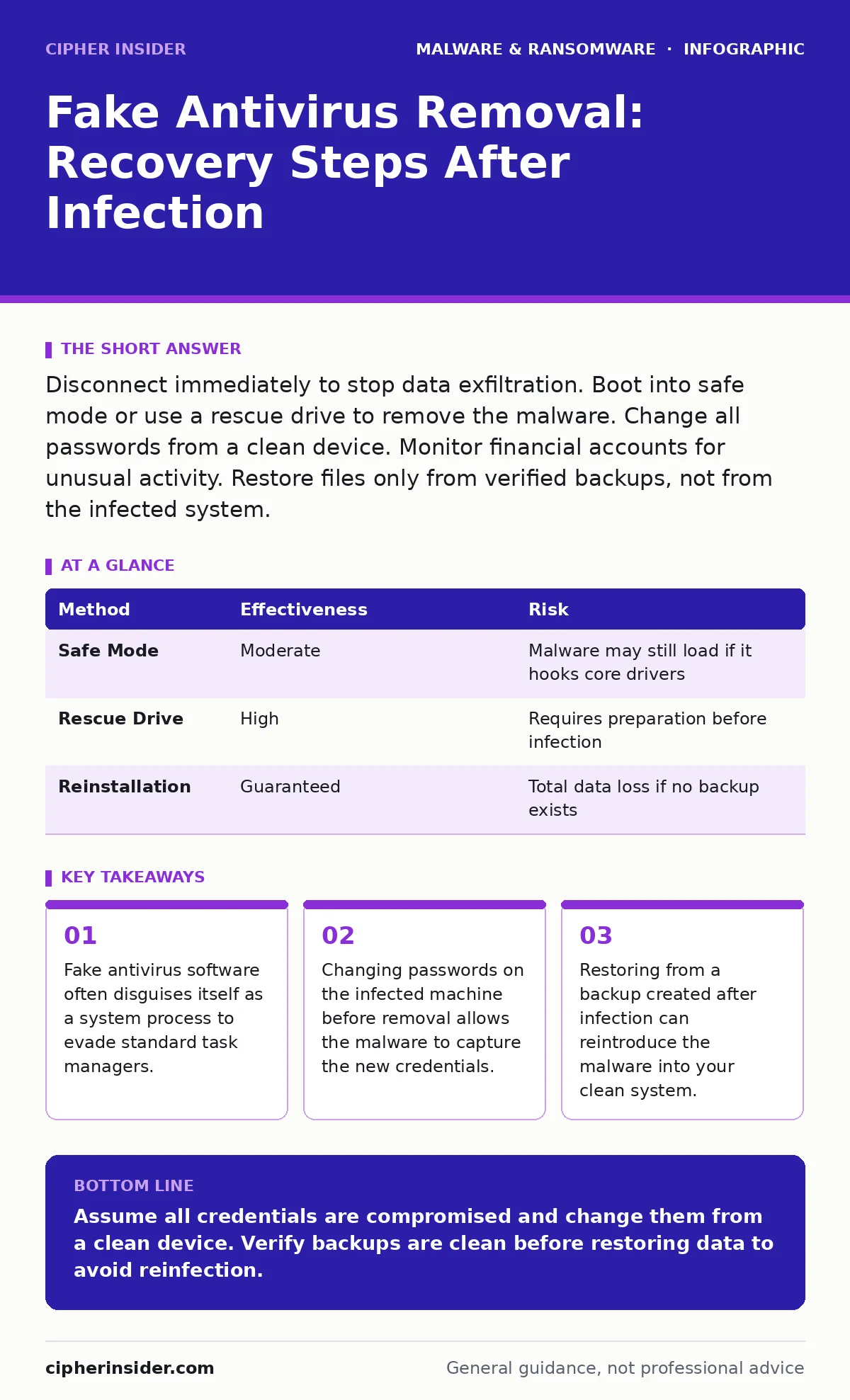
Disconnect immediately to stop data exfiltration. Boot into safe mode or use a rescue drive to remove the malware. Change all passwords from a clean device. Monitor financial accounts for unusual activity. Restore files only from verified backups, not from the infected system.
First hour
Fake antivirus software, often called scareware, mimics legitimate security tools to frighten you into paying for non-existent threats. It locks your screen, blocks access to applications, or displays constant false positives. Your immediate goal is containment, not removal. The malware is likely monitoring your inputs and network traffic.
- Disconnect the device from the internet immediately.
- If possible, unplug the Ethernet cable or disable Wi-Fi via hardware switch.
- Do not reboot the machine yet if it is locked, as this may trigger encryption or data wiping.
- Note the error codes or window titles displayed on the screen.
- Take a photograph of the screen with another device for later analysis.
- Identify if other devices on the same network are behaving strangely.
If the malware has locked your screen, do not attempt to force a shutdown by holding the power button unless you suspect hardware overheating. A forced shutdown can corrupt the file system, complicating recovery. Instead, leave the machine running but offline. This preserves the state of memory for potential forensic analysis. If you must shut down, do so gracefully if the operating system allows it.
First day
Once the immediate panic subsides, you must remove the malware. Standard antivirus tools may fail because the fake antivirus often disables legitimate security software. It may also install drivers that operate below the operating system level. These rootkits can hide their presence from standard file explorers.
Boot your computer into Safe Mode. This mode loads only essential drivers and services, preventing most malware from starting automatically. If Safe Mode is blocked, you must use a rescue drive. This is a bootable USB stick containing a lightweight operating system and security tools. It allows you to scan the infected drive from outside the compromised environment.
| Method | Effectiveness | Risk |
|---|---|---|
| Safe Mode | Moderate | Malware may still load if it hooks core drivers |
| Rescue Drive | High | Requires preparation before infection |
| Reinstallation | Guaranteed | Total data loss if no backup exists |
Use a reputable security tool on the rescue drive to scan for malware. Look for processes that consume high CPU or memory but have no visible window. Check for unfamiliar services that start automatically. Be wary of files with double extensions, such as document.pdf.exe. These are common delivery mechanisms for adware and other unwanted software.
If you cannot remove the malware using these methods, the safest option is a clean reinstall of the operating system. Back up only your personal files, not applications or system settings. Executable files may contain remnants of the infection. Verify each backed-up file by scanning it on a clean machine before restoring.
First week
Recovery does not end when the malware is removed. You must assume that any credential stored on the device is compromised. The fake antivirus likely had access to your browser history, saved passwords, and clipboard contents. Clipboard hijackers can steal sensitive data copied to the clipboard, such as cryptocurrency addresses or passwords.
Change all passwords from a clean device, not the infected one. Start with email and banking accounts. Enable multi-factor authentication where possible. This adds a layer of security that passwords alone cannot provide. Review recent transactions for unauthorised charges. Contact your bank if you notice suspicious activity.
Check for new user accounts on your system. Attackers often create hidden administrator accounts to maintain access. Review the list of installed programs and remove anything you do not recognise. Check browser extensions and remove those you did not install. Some malicious mobile apps use similar tactics to persist on devices.
Monitor your credit reports and identity protection services. Look for signs of identity theft, such as new credit accounts opened in your name. Be cautious of follow-up emails claiming to be from support teams. These are often phishing attempts to regain access. Do not click links or download attachments from these messages.
Who to tell
Reporting the incident helps organisations track trends and improve defenses. It also provides you with resources for recovery. Inform your employer if the infection occurred on a work device. They may have specific protocols for incident response.
If the malware stole personal data, report it to the relevant authorities in your country. This may include data protection agencies or consumer protection bureaus. Provide them with the details you collected in the first hour. This includes screenshots, error codes, and any communication with the attackers.
Do not share sensitive personal information publicly when reporting. Use secure channels provided by the authorities. Avoid posting details on social media, as this can alert the attackers to your awareness. They may then attempt to cover their tracks or escalate the attack.
How to stop a repeat
Prevention requires changing how you interact with software. Fake antivirus software often spreads through malicious advertisements or pirated software. These sources are common vectors for botnets and other malware. Avoid downloading software from unofficial websites.
Keep your operating system and applications updated. Updates often patch vulnerabilities that malware exploits to install itself. Use behavior-based detection tools that monitor actions rather than just file signatures. This approach can catch new variants of scareware that traditional antivirus software might miss.
Be sceptical of pop-ups claiming your computer is infected. Legitimate security software does not use alarming pop-ups to demand immediate payment. If you see such a message, close the browser window entirely, not just the pop-up. Check your browser settings for unwanted extensions.
Regularly back up your data to an offline storage device. This ensures you can recover from any infection without paying a ransom. Test your backups periodically to ensure they are readable. An untested backup is as useless as no backup at all.
Hidden costs of scareware
The financial cost of fake antivirus software extends beyond the ransom. Time spent removing the malware and recovering data is significant. You may need to pay for professional assistance if you cannot remove it yourself. There is also the risk of long-term identity theft.
Attacks often target users with outdated systems or poor security hygiene. This makes you a likely target for future attacks. Investing in security education and tools is cheaper than dealing with the aftermath. Understand the mechanisms of antivirus quarantine to distinguish between legitimate threats and false positives.
Final checks
Before considering the incident closed, perform a thorough audit. Check for scheduled tasks that run at specific times. These may be used to reinstall the malware. Review firewall logs for unusual outbound connections. This can reveal command-and-control communications.
Ensure your security software is up to date and configured correctly. Disable unnecessary services that could be exploited. Educate yourself on common social engineering tactics. Awareness is your first line of defense against scareware.
Key takeaways
- Fake antivirus software often disguises itself as a system process to evade standard task managers.
- Changing passwords on the infected machine before removal allows the malware to capture the new credentials.
- Restoring from a backup created after infection can reintroduce the malware into your clean system.
Assume all credentials are compromised and change them from a clean device. Verify backups are clean before restoring data to avoid reinfection.
Frequently asked questions
Can I remove fake antivirus by just uninstalling it?
No, it often installs drivers and registry changes that persist after uninstallation. You may need to use safe mode or a rescue drive for complete removal.
Is my data safe if I didn't pay?
Usually, yes. Fake antivirus software aims to extort money, not encrypt data like ransomware. However, it may have stolen credentials or personal files.
Should I format my hard drive?
If you cannot remove the malware using other methods, formatting is the safest option. Ensure you have backed up personal files to a clean device first.
How do I know if it is fake?
Legitimate antivirus software does not use pop-ups to demand immediate payment. It also does not block access to your own files or system settings.
How this guide was produced: written by the Cipher Insider editorial team with AI assistance, checked against the public references listed below, and reviewed when the facts change. See our editorial policy or report an error.