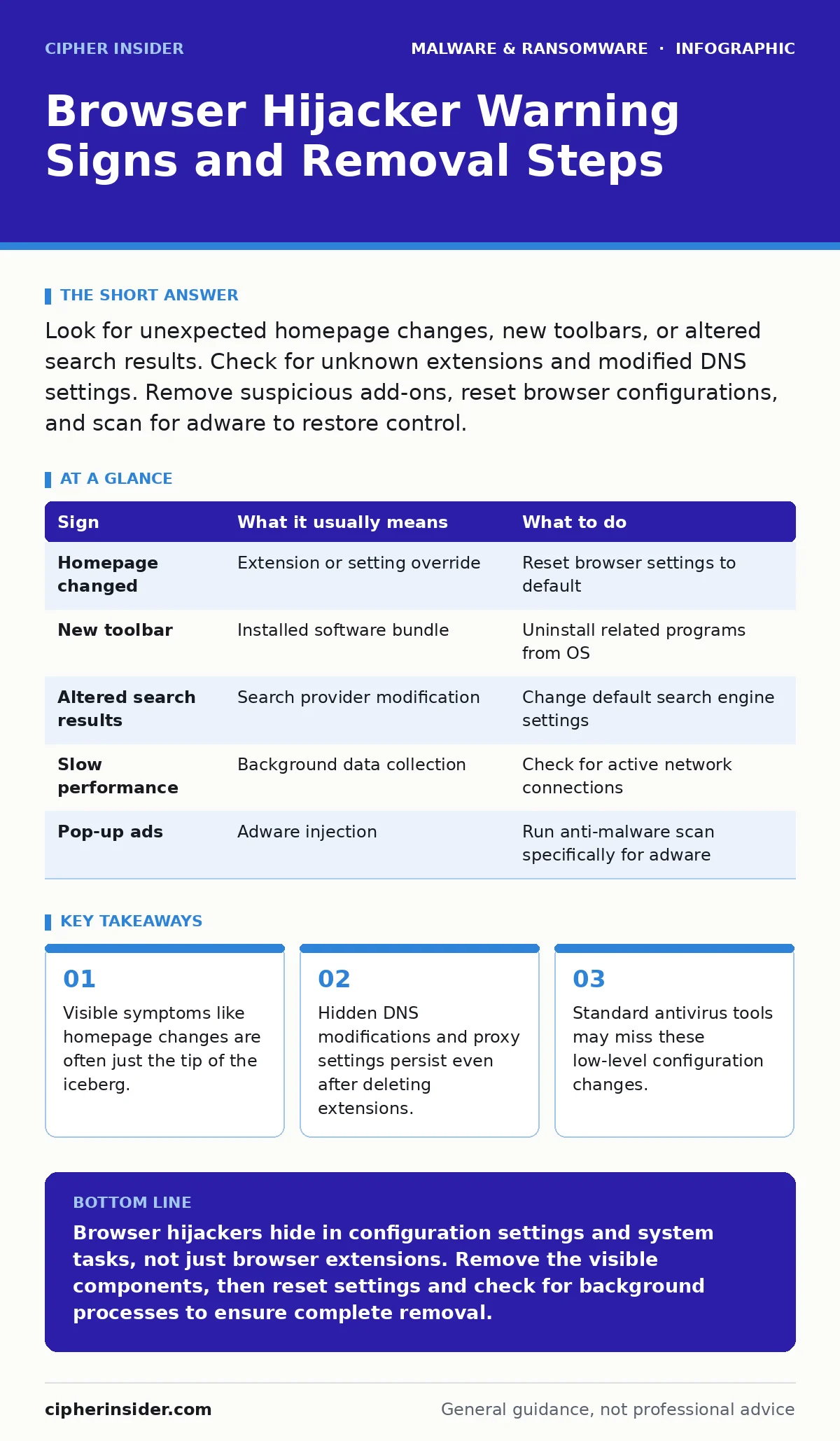
Look for unexpected homepage changes, new toolbars, or altered search results. Check for unknown extensions and modified DNS settings. Remove suspicious add-ons, reset browser configurations, and scan for adware to restore control.
The Obvious Intrusions
You notice the first signs when your browser behaves against your will. The homepage loads a unfamiliar search portal instead of your preferred engine. A new toolbar appears at the top of the window, displaying weather or news feeds you did not request. These changes happen without consent.
The browser may also open multiple tabs upon startup. These tabs often contain advertisements for generic software or questionable health products. You might find that closing these tabs causes new ones to open immediately. This persistence indicates active code running in the background.
The Silent Configuration Shifts
The more dangerous signs are invisible to the casual user. The hijacker modifies your DNS settings. DNS, or Domain Name System, translates website names into numerical addresses. By changing this, the hijacker can redirect your traffic to malicious sites that look legitimate.
Another hidden change involves proxy settings. A proxy acts as an intermediary for your internet requests. If a hijacker sets a rogue proxy, all your traffic passes through their server. This allows them to read unencrypted data and inject additional scripts into the pages you visit.
Search Result Manipulation
A subtle sign is the alteration of search results. When you type a query, the top results may be sponsored links that are not relevant to your search. These links often lead to sites filled with aggressive advertising. The hijacker earns money each time you click these ads.
You may also notice that the search engine itself has changed. Even if you type the correct URL, the browser forces you to use a different search provider. This happens because the hijacker overrides the default search engine setting in the browser configuration.
Extension and Plugin Inspection
Check your browser extensions list. Look for items you do not recognise or that have vague names like "Search Helper" or "Web Assistant". Even if you installed an extension recently, it may have bundled the hijacker. The extension icon often sits quietly in the toolbar.
Some hijackers disguise themselves as legitimate tools. They might claim to optimise browsing speed or block ads. In reality, they are the source of the unwanted advertisements. Disabling these extensions is the first step in stopping the hijacking behaviour.
| Sign | What it usually means | What to do |
|---|---|---|
| Homepage changed | Extension or setting override | Reset browser settings to default |
| New toolbar | Installed software bundle | Uninstall related programs from OS |
| Altered search results | Search provider modification | Change default search engine settings |
| Slow performance | Background data collection | Check for active network connections |
| Pop-up ads | Adware injection | Run anti-malware scan specifically for adware |
System-Wide Persistence
Browser hijackers often install components outside the browser. They may add scheduled tasks that run at startup. These tasks reinstall the hijacker if you delete the browser extension. This is why simple removal often fails.
They might also modify the hosts file. This file maps domain names to IP addresses locally. By adding entries here, the hijacker can force your computer to load malicious sites even if you fix your DNS settings. You must check this file for unfamiliar entries.
See also: Browser Fingerprinting Response: Immediate Steps and Recovery · Fake Antivirus Removal: Recovery Steps After Infection
Removal and Restoration
Start by removing suspicious extensions from the browser. Use the browser’s built-in extension manager. Disable any item you do not recognise. Then, uninstall any related programs from your operating system’s application list. Look for software installed around the time the hijacker appeared.
Next, reset your browser settings. This restores the homepage, new tab page, and search engine to their defaults. It also clears cookies and cached data. This step removes many of the configuration changes made by the hijacker. It does not delete your bookmarks or saved passwords.
Preventing Future Infections
Avoid downloading software from unofficial sources. Many hijackers bundle with free software. During installation, choose the custom or advanced option. This allows you to decline additional software that the installer tries to add. Read the license agreement carefully.
Keep your browser updated. Updates often include security patches that prevent hijackers from exploiting known vulnerabilities. Use a content blocker to stop malicious scripts from loading. Regularly review your installed programs and browser extensions to catch any new intrusions early.
Key takeaways
- Visible symptoms like homepage changes are often just the tip of the iceberg.
- Hidden DNS modifications and proxy settings persist even after deleting extensions.
- Standard antivirus tools may miss these low-level configuration changes.
Browser hijackers hide in configuration settings and system tasks, not just browser extensions. Remove the visible components, then reset settings and check for background processes to ensure complete removal.
Frequently asked questions
Can a browser hijacker steal my passwords?
Most hijackers focus on advertising revenue and do not directly steal passwords. However, they can redirect you to fake login pages that do steal credentials. Always check the URL bar carefully.
How do I know if the hijacker is still active?
Monitor your browser for recurring changes. If the homepage or search engine changes again after a reset, the hijacker is still present. Check for unknown extensions and background processes that were not removed.
How this guide was produced: written by the Cipher Insider editorial team with AI assistance, checked against the public references listed below, and reviewed when the facts change. See our editorial policy or report an error.