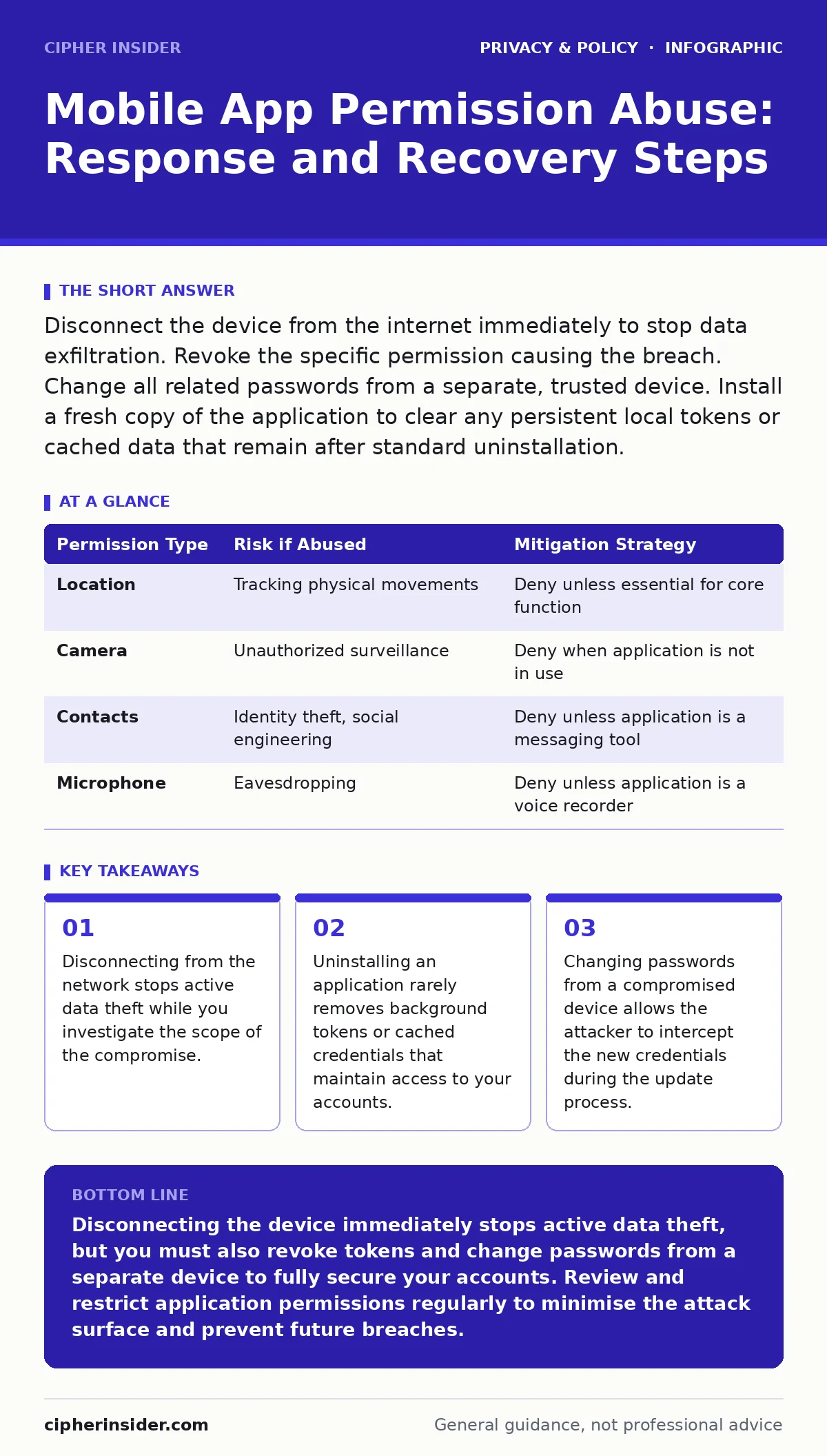
Disconnect the device from the internet immediately to stop data exfiltration. Revoke the specific permission causing the breach. Change all related passwords from a separate, trusted device. Install a fresh copy of the application to clear any persistent local tokens or cached data that remain after standard uninstallation.
First hour
The immediate priority is to sever the communication channel between the compromised application and the attacker’s infrastructure. You must stop the flow of data before you can assess what has been taken. If the application has abused permissions to access contacts, messages, or financial data, it is likely transmitting this information in real time. Leaving the network connection active allows the application to continue exfiltrating data even as you try to close the application or change settings.
Disconnect your device from Wi-Fi and disable mobile data. This isolation prevents the application from sending new data packets to its command and control servers. It also stops the application from receiving further instructions that might trigger additional malicious behaviours, such as deleting logs or locking your device for ransom. Physical isolation is the only reliable way to pause an active breach when you suspect an application is behaving maliciously.
- Turn on Airplane mode to disable all wireless radios, including Wi-Fi, Bluetooth, and cellular data.
- Verify that no background processes are attempting to reconnect by checking the status bar for network icons.
- If the device is managed by an organisation, notify the IT security team via a separate, secure communication channel.
First day
Once the device is isolated, you must address the credentials that the application may have accessed. Many applications store authentication tokens locally to keep you logged in. These tokens often grant the same access as your password. If the application abused permissions to read these tokens, the attacker can access your accounts even if you change your password. You must treat every account accessed through the compromised application as breached.
Log in to your critical accounts from a trusted device. Revoke all active sessions and refresh tokens. This forces the application to request new credentials, which it cannot obtain because you have disconnected it from the network. Change the passwords for any service that the application could access. This includes email, banking, and social media platforms. Use strong, unique passwords that you have not used elsewhere. Consider using a password manager to generate and store these credentials securely.
If the application accessed your email, check for forwarding rules or filters that might redirect copies of your messages to an external address. Attackers often set these up to maintain access even after you change your password. Delete any unfamiliar forwarding addresses or filters. Review the security settings of your email provider to ensure no third-party applications have been granted access to read or send messages on your behalf.
First week
After securing your accounts, you need to clean the device and prevent recurrence. Uninstall the application completely. On most operating systems, this removes the application code and its associated data. However, some applications leave behind residual files or cached data that may contain sensitive information. Clear the cache and data for any other applications that might have interacted with the compromised one.
Perform a full security scan of your device using a reputable security tool. While mobile operating systems have strong sandboxing, malware can sometimes escape these restrictions. A scan helps identify any additional malicious components that may have been installed alongside the compromised application. If you suspect the operating system itself is compromised, consider performing a factory reset. This wipes the device clean and restores it to its original state, removing any persistent threats.
Reinstall the application only if you still need it. Download it from the official app store, not from third-party sources. Before granting permissions, review what the application actually needs to function. If a weather application requests access to your contacts, deny the permission. Many applications request more permissions than necessary for their core functionality. Denying non-essential permissions reduces the attack surface and limits the damage if the application is compromised in the future.
Who to tell
Informing the right parties is critical for containing the damage and preventing further abuse. If the application is from a known vendor, report the issue to their security team. They may need to patch the vulnerability or remove the malicious version from the app store. Provide them with details of the permissions abused and the behaviour observed. This helps them investigate and prevent other users from suffering the same fate.
If the application accessed financial data, contact your bank or credit card issuer. Inform them of the potential breach so they can monitor for suspicious transactions. They may issue new cards or freeze accounts to prevent fraud. Keep records of all communications with these parties. This documentation may be needed for insurance claims or legal proceedings if the breach results in financial loss.
If the breach involves personal data such as health records or private messages, you may need to notify individuals whose data was exposed. This is particularly important if the application shared data with third parties without consent. Check your local privacy laws to understand your obligations. In some jurisdictions, you are required to report data breaches within a specific timeframe.
How to stop a repeat
Preventing future permission abuse requires a proactive approach to application management. Regularly review the permissions granted to each application. Most operating systems allow you to see which applications have access to sensitive data such as location, camera, and microphone. Revoke permissions for applications that no longer need them. For example, a game may not need access to your location or contacts. Denying these permissions reduces the risk of data leakage.
Keep your operating system and applications up to date. Developers regularly release patches to fix security vulnerabilities. Installing these updates ensures you have the latest protections against known threats. Enable automatic updates where possible to ensure you do not miss critical security fixes. Outdated software is a common entry point for attackers.
Consider using privacy-focused browsers and encrypted email for sensitive communications. These tools provide an additional layer of security by encrypting your data in transit and at rest. They also limit the amount of data that third parties can collect about your activities. For more detailed advice on managing these tools, see our guide on privacy-focused browsers and encrypted email.
See also: App permission management best practices for strict device privacy · Location Tracking: How It Works and How to Control It
Understanding the mechanism
Mobile applications operate within a sandbox, which isolates them from other applications and the operating system. However, permissions allow applications to break out of this sandbox and access sensitive data. When you grant a permission, you are giving the application access to specific resources. If the application is malicious or compromised, it can use these permissions to steal data or perform other harmful actions.
The danger lies in the persistence of these permissions. Even if you uninstall the application, some permissions may remain granted if you reinstall the application or if the application shares data with other applications. This is why revoking access and clearing cached data is critical. It ensures that the application cannot retain access to your data after you have removed it from your device.
| Permission Type | Risk if Abused | Mitigation Strategy |
|---|---|---|
| Location | Tracking physical movements | Deny unless essential for core function |
| Camera | Unauthorized surveillance | Deny when application is not in use |
| Contacts | Identity theft, social engineering | Deny unless application is a messaging tool |
| Microphone | Eavesdropping | Deny unless application is a voice recorder |
Long-term hygiene
Maintaining good security hygiene is an ongoing process. Regularly audit your applications and their permissions. Remove applications that you no longer use. Each application represents a potential attack vector. The fewer applications you have installed, the smaller your attack surface.
Educate yourself about the risks associated with mobile applications. Understand how permissions work and why they are needed. This knowledge helps you make informed decisions about which applications to install and what permissions to grant. Stay informed about new threats and vulnerabilities by following reputable security sources.
For families managing multiple devices, consider using password managers for families to ensure strong, unique passwords are used across all accounts. This reduces the risk of credential stuffing attacks, where attackers use leaked passwords from one breach to access other accounts. By combining strong passwords with careful permission management, you significantly reduce the risk of mobile app permission abuse.
Key takeaways
- Disconnecting from the network stops active data theft while you investigate the scope of the compromise.
- Uninstalling an application rarely removes background tokens or cached credentials that maintain access to your accounts.
- Changing passwords from a compromised device allows the attacker to intercept the new credentials during the update process.
Disconnecting the device immediately stops active data theft, but you must also revoke tokens and change passwords from a separate device to fully secure your accounts. Review and restrict application permissions regularly to minimise the attack surface and prevent future breaches.
Frequently asked questions
Does uninstalling an app remove all its data?
Uninstalling removes the application code, but some cached data or tokens may remain. You must manually clear the app data and cache to ensure complete removal.
Can an app access my data after I revoke its permissions?
No, revoking permissions immediately stops the app from accessing that specific data. However, it may still have access to data it already collected or cached before revocation.
Should I use a factory reset after a permission abuse?
A factory reset is recommended if you suspect the operating system is compromised or if you cannot identify the source of the breach. It wipes all data and restores the device to its original state.
How do I know if an app is abusing permissions?
Look for unusual battery drain, increased data usage, or unexpected behaviour such as the camera or microphone turning on without your input. Regularly review permission settings to identify any anomalies.
How this guide was produced: written by the Cipher Insider editorial team with AI assistance, checked against the public references listed below, and reviewed when the facts change. See our editorial policy or report an error.