Start by auditing existing credentials and selecting a manager with secure sharing features. Migrate accounts individually, enforce unique passwords, and set up emergency access. Regularly audit permissions to ensure only necessary members retain access to sensitive data.
Assessing Household Digital Hygiene
Before installing any software, you must understand what you are protecting. A family password manager centralises credentials, which improves convenience but concentrates risk. If one device is compromised, the attacker may access everything stored in the shared vault.
Begin by listing every online account used by each household member. Identify which accounts are shared, such as streaming services or utility providers, and which are strictly personal, like banking or email. This distinction determines how you structure your vaults later.
Consider the device landscape in your home. Every smartphone, tablet, and computer must be able to run the chosen application. If an older device cannot support the software, you must decide whether to retire it or maintain a separate, less secure method for that user.
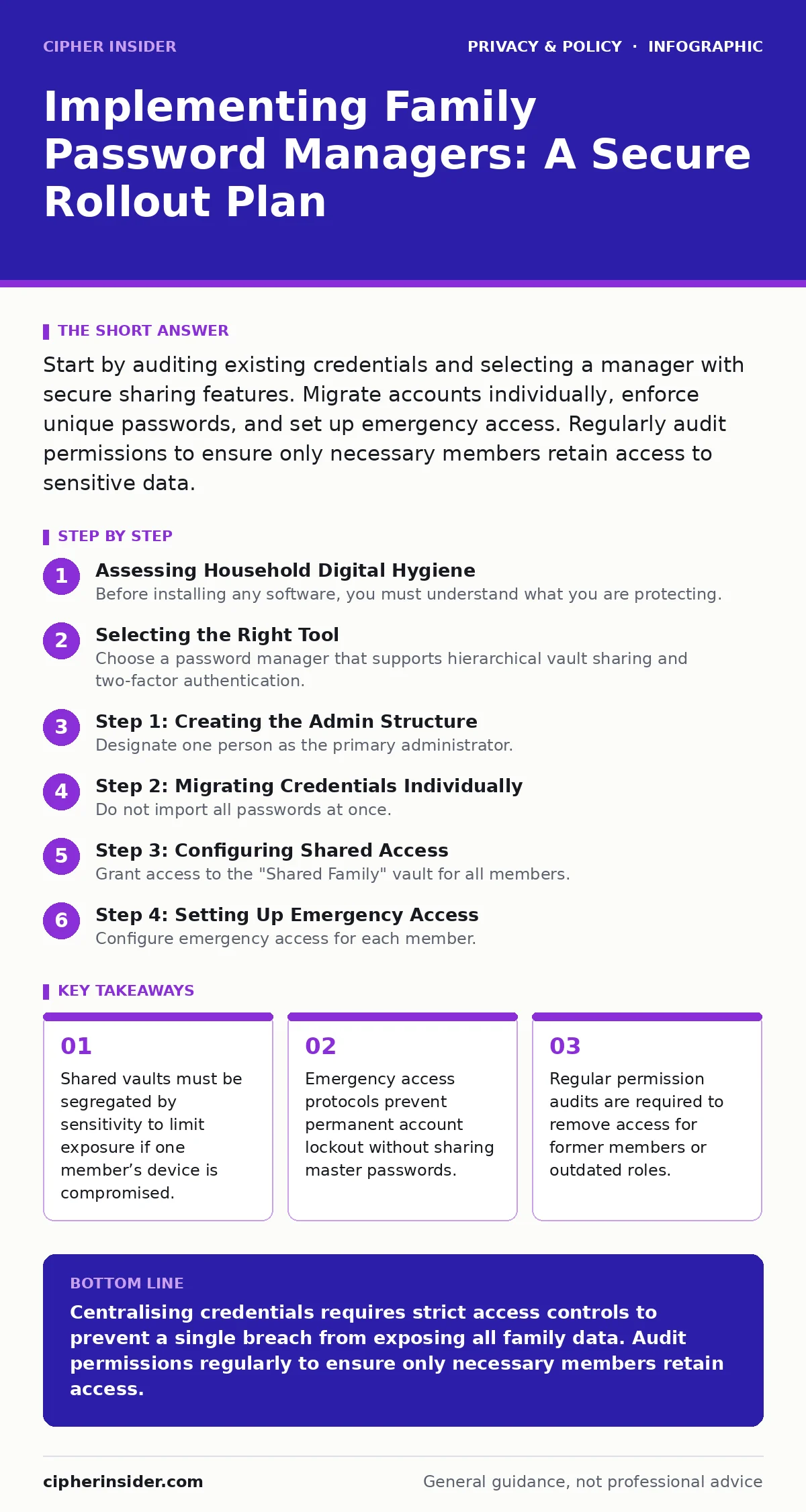
Selecting the Right Tool
Choose a password manager that supports hierarchical vault sharing and two-factor authentication. The tool must allow you to share specific folders rather than granting blanket access to the entire database. This granularity is vital for separating financial data from entertainment accounts.
Verify that the application uses zero-knowledge encryption. This means the provider cannot read your data because the encryption keys remain on your devices. You are responsible for securing the master password; the provider only stores the encrypted blob.
Check for cross-platform compatibility. If one member uses a different operating system than the others, the manager must sync seamlessly across all environments. Incompatibility creates friction, leading users to abandon the tool and revert to insecure habits.
Step 1: Creating the Admin Structure
Designate one person as the primary administrator. This person creates the main account and sets the security policies. Do not share this master password with anyone. Instead, use the application’s built-in sharing features to grant access.
Create separate vaults for different categories of data. Establish a "Personal" vault for each member, a "Shared Family" vault for utilities and subscriptions, and a "Financial" vault for banking and investments. This separation limits the blast radius if one vault is breached.
Step 2: Migrating Credentials Individually
Do not import all passwords at once. Start with one member and migrate their accounts one by one. This approach allows you to catch errors early without disrupting the entire household’s access to critical services.
Log into each account using the old password, then update it to a new, unique password generated by the manager. Save the new credential in the appropriate vault. Repeat this process for every account until the migration is complete.
Verify that the new password works before moving to the next account. If an update fails, investigate whether the service blocks password changes or requires additional verification steps. Resolve these issues before proceeding.
Step 3: Configuring Shared Access
Grant access to the "Shared Family" vault for all members. Ensure that permissions are set to "view and edit" for general accounts but "view only" for sensitive information like tax documents or medical records. This principle of least privilege reduces accidental data exposure.
Invite members to the shared vaults using their registered email addresses or application IDs. Do not use social media handles or phone numbers if the application allows more secure identifiers. This reduces the risk of inviting the wrong person due to a typo.
Test the shared access by having another member log into a shared account. Confirm that they can see the credentials and that the two-factor authentication prompts are handled correctly. If the second member cannot access the account, check the sharing permissions again.
See also: How IDOR Vulnerabilities Work: Step-by-Step Exploitation · Smart home privacy risks: recovery steps after a sensor leak
Step 4: Setting Up Emergency Access
Configure emergency access for each member. This feature allows a trusted contact to request access to your vault if you become incapacitated or pass away. The contact must wait for a predefined period before gaining access, allowing you to cancel the request if it was accidental.
Choose an emergency contact who is not a daily user of the shared vault. This prevents accidental exposure of sensitive data during routine use. The contact should be someone you trust implicitly, such as a spouse or adult sibling.
Document the emergency access setup in a physical location, such as a safe deposit box. Include instructions on how to request access and the identity of the emergency contact. This ensures that the process can be followed even if digital records are lost.
Verification Checklist
Use this checklist to confirm your implementation is secure and functional.
- All members have installed the password manager on their primary devices.
- Two-factor authentication is enabled for all manager accounts.
- Shared vaults are segregated by sensitivity and user role.
- Emergency access is configured for every adult member.
- No master passwords are shared via insecure channels.
- Each member has successfully logged into a shared account.
Ongoing Maintenance and Audits
Review vault permissions every six months. Remove access for members who no longer need it, such as teenagers who have moved out or guests who have left. Stale permissions are a common source of data leaks.
Monitor for login alerts on shared accounts. If you see a login from an unfamiliar location, change the password immediately and review the access logs. This helps you detect compromised credentials before they are abused.
Update the master password annually. While the vault encryption remains strong, changing the master password ensures that any potential offline copies of the encrypted database become unusable. This adds a layer of security against long-term threats.
Handling Children and Teens
Children’s online privacy risks are higher due to their limited understanding of digital threats. Create a separate, managed account for each child. Do not give them access to the main shared vaults.
Use the application’s parental controls to restrict what they can see and edit. Limit their ability to create new accounts or change passwords for shared services. This prevents accidental misconfiguration of family accounts.
Educate them on the importance of not sharing their own passwords. Even within the family, individual accountability is key. If they need help with a password, they should ask for assistance rather than sharing the credential directly.
Key takeaways
- Shared vaults must be segregated by sensitivity to limit exposure if one member’s device is compromised.
- Emergency access protocols prevent permanent account lockout without sharing master passwords.
- Regular permission audits are required to remove access for former members or outdated roles.
Centralising credentials requires strict access controls to prevent a single breach from exposing all family data. Audit permissions regularly to ensure only necessary members retain access.
Frequently asked questions
Can I use the same master password for the family manager and my personal email?
No. Using the same password across different services creates a single point of failure. If one service is breached, attackers can access all other accounts linked to that password.
What happens if I lose my device with the password manager installed?
Your data remains secure because it is encrypted with your master password. You can reinstall the application on a new device and restore your vault using your master password and backup file.
Is it safe to share banking passwords with my spouse?
It is safe if you use the application’s secure sharing features. Do not share the master password. Instead, grant specific access to the financial vault, allowing your spouse to view and edit those credentials only.
How do I handle a teenager who moves out?
Remove their access from all shared vaults immediately. Provide them with their own independent account and vault. This ensures their data is separate and you retain control over family-shared resources.
How this guide was produced: written by the Cipher Insider editorial team with AI assistance, checked against the public references listed below, and reviewed when the facts change. See our editorial policy or report an error.