
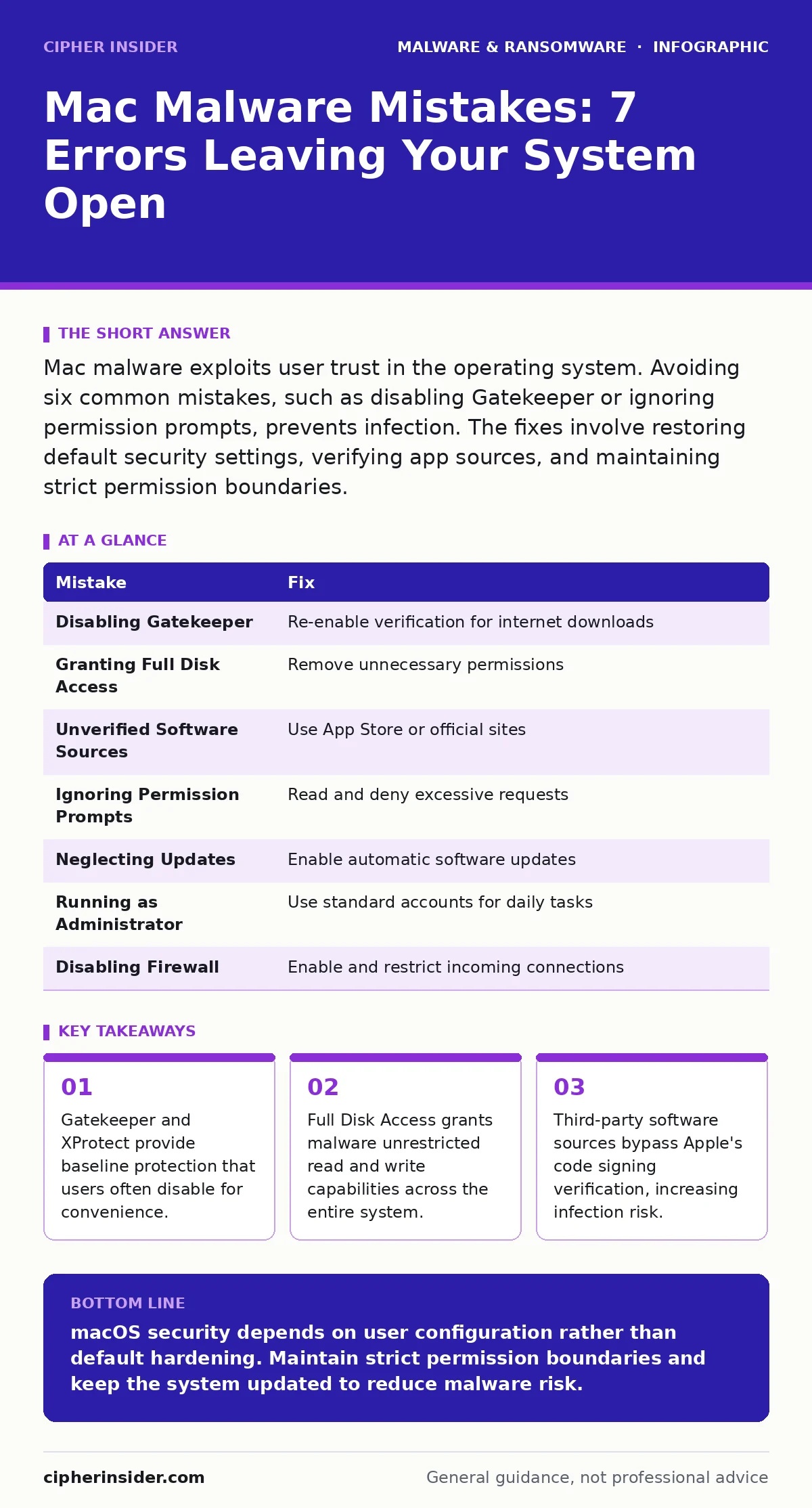
Mac malware exploits user trust in the operating system. Avoiding six common mistakes, such as disabling Gatekeeper or ignoring permission prompts, prevents infection. The fixes involve restoring default security settings, verifying app sources, and maintaining strict permission boundaries.
Mistake 1: Disabling Gatekeeper for Convenience
Why it hurts: Gatekeeper checks whether an application has been signed by a recognized developer and notarised by Apple. Disabling this feature allows any executable to run without verification. Malware authors frequently sign malicious code with stolen certificates or use self-signed identities. When you turn off Gatekeeper, you remove the primary barrier that stops these unverified binaries from launching. The system no longer warns you about apps downloaded from the internet, treating them with the same trust as system utilities.
The fix: Re-enable Gatekeeper through System Settings under Privacy and Security. Ensure the option to allow applications downloaded from anywhere is unchecked. This forces the operating system to verify the digital signature of every new application. If you must run an unverified app, use the control-click method to open it once, rather than disabling the global setting. This maintains the security boundary for all other software while allowing specific exceptions.
Mistake 2: Granting Full Disk Access to Untrusted Apps
Why it hurts: Full Disk Access is a macOS permission that allows an application to read and write to any file on the storage drive. Many users grant this permission to utility software or creative tools without understanding the scope. If malware obtains this permission, it can access encrypted files, backup archives, and sensitive documents regardless of other security controls. The malware does not need to break encryption; it simply reads the data while the operating system decrypts it for the authorised application.
The fix: Review the Full Disk Access list in System Settings regularly. Remove permissions from any application that does not explicitly require access to the entire drive. Most applications only need access to specific folders or their own data directories. Use the principle of least privilege, granting the minimum access necessary for the software to function. This limits the damage if the application is compromised or replaced by malware.
Mistake 3: Installing Software from Unverified Sources
Why it hurts: The Mac App Store verifies applications before distribution, but many users download software from third-party websites. These sources often host modified versions of popular tools that include bundled malware or potentially unwanted programs. The installer may appear legitimate, but it executes hidden payloads during installation. These payloads can install keyloggers, browser hijackers, or remote access tools. The lack of a centralised verification process means you rely entirely on the publisher's security practices.
The fix: Prefer the Mac App Store or official vendor websites for software installations. Verify the digital signature of downloaded applications before running them. Check the developer's identity in the application's Info pane. If an application lacks a valid signature or comes from an unknown publisher, delete it immediately. This practice reduces the risk of installing malicious software disguised as legitimate utilities or game cracks.
Mistake 4: Ignoring Permission Prompts
Why it hurts: macOS displays permission prompts when an application attempts to access sensitive features like the camera, microphone, or screen recording. Users often click "Allow" without reading the request, assuming the application needs the access to function. Malware exploits this habit by requesting permissions that seem reasonable but are actually excessive. A calculator app requesting screen recording access is a clear anomaly, but subtler requests are harder to spot. Once granted, the malware can monitor your activity or capture sensitive data.
The fix: Read every permission prompt carefully before responding. Deny access if the request does not align with the application's stated purpose. Review granted permissions regularly in System Settings to identify and revoke excessive access. This manual verification step ensures that only trusted applications can interact with sensitive hardware and data. It adds a layer of defence against malware that relies on user complacency.
Mistake 5: Neglecting System Updates
Why it hurts: macOS updates include security patches for vulnerabilities in the operating system and built-in applications. Delaying these updates leaves known weaknesses open to exploitation. Malware authors actively scan for systems running outdated software versions. They exploit these vulnerabilities to execute code or escalate privileges without user interaction. The longer you wait to update, the higher the risk of infection through drive-by attacks or malicious documents.
The fix: Enable automatic software updates in System Settings. This ensures that security patches are installed as soon as they become available. Regular updates also improve the effectiveness of built-in security features like XProtect and MRT. Keeping the system current reduces the attack surface available to malware authors. It is a simple, low-effort measure that provides significant protection against known threats.
Mistake 6: Running as an Administrator
Why it hurts: Using an administrator account for daily tasks grants every application you run full control over the system. If malware executes while you are logged in as an administrator, it can modify system files, install persistent backdoors, and disable security features. Standard user accounts limit the damage malware can do by restricting write access to critical system directories. This containment prevents the malware from altering the operating system or affecting other users.
The fix: Create a standard user account for daily use and reserve the administrator account for installation and configuration tasks. Use the administrator credentials only when prompted for elevated privileges. This separation of duties ensures that most applications run with limited permissions. Even if malware executes, it will struggle to persist or escalate its access. This practice is fundamental to maintaining system integrity.
Mistake 7: Disabling Firewall and Network Protections
Why it hurts: The macOS firewall blocks unsolicited incoming connections from the network. Disabling it exposes open ports to external scanners and attackers. Malware can use these open ports to establish command-and-control channels or spread to other devices on the network. The firewall provides a critical layer of defence against remote exploitation. Without it, your system is visible and accessible to any attacker on the internet or local network.
The fix: Enable the firewall in System Settings and set it to block all incoming connections except for those explicitly allowed. Review the list of applications allowed through the firewall and remove any that do not need network access. This configuration ensures that only trusted applications can communicate with external services. It reduces the risk of remote malware infection and limits the ability of installed malware to exfiltrate data.
| Mistake | Fix |
|---|---|
| Disabling Gatekeeper | Re-enable verification for internet downloads |
| Granting Full Disk Access | Remove unnecessary permissions |
| Unverified Software Sources | Use App Store or official sites |
| Ignoring Permission Prompts | Read and deny excessive requests |
| Neglecting Updates | Enable automatic software updates |
| Running as Administrator | Use standard accounts for daily tasks |
| Disabling Firewall | Enable and restrict incoming connections |
Key takeaways
- Gatekeeper and XProtect provide baseline protection that users often disable for convenience.
- Full Disk Access grants malware unrestricted read and write capabilities across the entire system.
- Third-party software sources bypass Apple's code signing verification, increasing infection risk.
macOS security depends on user configuration rather than default hardening. Maintain strict permission boundaries and keep the system updated to reduce malware risk.
Frequently asked questions
Does macOS need antivirus software?
Built-in tools like XProtect and MRT provide basic protection, but additional software can offer behavior-based detection for advanced threats.
Can macOS get ransomware?
Yes, ransomware can encrypt files on macOS if users grant excessive permissions or run unverified software.
How do I check for malware on Mac?
Review active applications, check permission grants, and use built-in security tools or third-party scanners.
Is Gatekeeper enough for security?
Gatekeeper prevents unverified apps from running, but it does not protect against social engineering or permission misuse.
How this guide was produced: written by the Cipher Insider editorial team with AI assistance, checked against the public references listed below, and reviewed when the facts change. See our editorial policy or report an error.