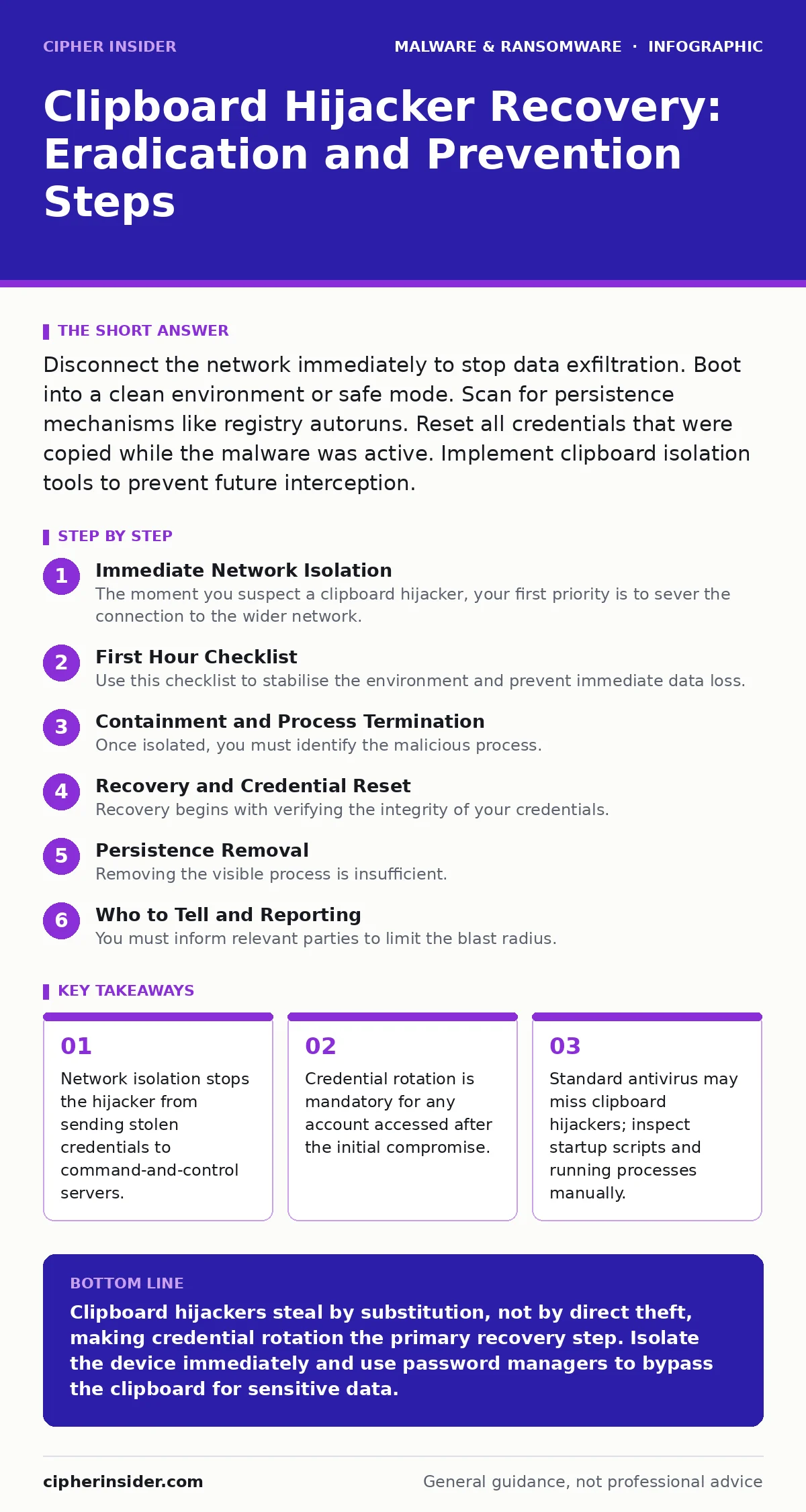
Disconnect the network immediately to stop data exfiltration. Boot into a clean environment or safe mode. Scan for persistence mechanisms like registry autoruns. Reset all credentials that were copied while the malware was active. Implement clipboard isolation tools to prevent future interception.
Immediate Network Isolation
The moment you suspect a clipboard hijacker, your first priority is to sever the connection to the wider network. These threats rely on exfiltrating data. If the device remains connected, the malware can send stolen credentials, cryptocurrency addresses, or sensitive documents to remote servers in seconds.
Physical disconnection is the most reliable method. Unplug the Ethernet cable or disable Wi-Fi at the hardware switch level. Software-based Wi-Fi toggles may be intercepted by the malware if it has elevated privileges. Do not assume that closing applications stops the process. The hijacker often runs as a background service or injects itself into legitimate system processes.
First Hour Checklist
Use this checklist to stabilise the environment and prevent immediate data loss. Each step reduces the window of opportunity for the attacker.
- Disconnect the device from all networks, including Bluetooth and mobile hotspots.
- Document the symptoms: note which applications were open and what data was being copied.
- Take a screenshot of the task manager or process list if you can do so safely.
- Do not reboot the machine yet. Rebooting may erase volatile memory evidence needed for forensic analysis.
- Identify the active user account. The malware often targets the primary user session.
- Check for unusual outbound connections if you have local network monitoring tools.
Containment and Process Termination
Once isolated, you must identify the malicious process. Clipboard hijackers often masquerade as legitimate system components. Look for processes with generic names like svchost or explorer that are running from unexpected directories, such as the temporary folder or the user’s application data directory.
Terminating the process is a temporary fix. The malware will likely restart if its persistence mechanism remains intact. Persistence is the method by which malware ensures it runs again after a reboot. Common techniques include modifying the Windows Registry Run keys, adding tasks to the Task Scheduler, or injecting code into legitimate browser processes.
If you suspect the malware has injected itself into a browser, closing the browser window may not kill the process. The injection may reside in the browser’s background helper services. Consult guides on browser hijackers to understand how these injection techniques bypass standard process termination.
Recovery and Credential Reset
Recovery begins with verifying the integrity of your credentials. The core threat of a clipboard hijacker is not data destruction, but credential substitution. When you copy a password or a cryptocurrency wallet address, the malware replaces it with the attacker’s address or a stolen password.
You must assume that any credential copied and pasted during the infection period is compromised. This includes passwords, API keys, and private keys. Reset these credentials from a clean, trusted device. Do not use the infected machine to generate new passwords, as the keystrokes or clipboard content may still be monitored.
For cryptocurrency users, check transaction histories for outgoing transfers to unknown addresses. If a transaction occurred, it is irreversible. For traditional accounts, enable multi-factor authentication. However, be aware that some sophisticated hijackers can intercept time-based one-time passwords if they are copied from an authenticator app.
Persistence Removal
Removing the visible process is insufficient. You must locate and delete the persistence mechanism. On Windows systems, inspect the Registry Editor for entries in the Run and RunOnce keys. Look for paths pointing to executable files in non-standard directories.
On macOS, check the LaunchAgents and LaunchDaemons directories. These folders contain property list files that tell the system which programs to start at login. Any file you do not recognise or that points to a suspicious location should be quarantined.
Linux systems often use cron jobs or systemd services for persistence. Review the crontab for the current user and system-wide cron directories. Look for scripts that execute unusual commands or connect to external IP addresses.
Who to Tell and Reporting
You must inform relevant parties to limit the blast radius. If the infection occurred on a corporate device, report it to the security operations centre immediately. They may need to isolate other devices on the same subnet or reset network-level credentials.
For personal devices, consider notifying the service providers of any compromised accounts. This allows them to flag suspicious login attempts. If financial data was involved, contact your bank to freeze transactions.
Do not share sensitive details of the incident on public forums. Attackers monitor these channels to refine their tactics or to target victims who have already been compromised.
Preventing Recurrence
To stop a repeat infection, you must change how you interact with the clipboard. The most effective defence is to avoid copying sensitive data. Use password managers that auto-fill credentials directly into applications. This bypasses the clipboard entirely, rendering the hijacker ineffective.
For cryptocurrency transactions, always verify the recipient address by comparing the first and last few characters manually. Do not trust the full address if it was copied from the clipboard. Some wallets offer address validation features that highlight mismatches.
Regularly update your operating system and applications. Many clipboard hijackers exploit known vulnerabilities in system libraries. Patching these vulnerabilities removes the entry points.
Consider using clipboard managers that monitor for suspicious changes. Some tools alert you if the content of the clipboard changes unexpectedly after you copy it. This adds a layer of detection that can catch hijackers before you paste the wrong data.
Long-Term Hygiene
Adopt a habit of minimal clipboard usage. Clear the clipboard after use if your operating system does not do so automatically. This reduces the window of exposure.
Regularly review installed applications. Remove any software you do not actively use. Many clipboard hijackers are bundled with adware or fake utility software. Understanding the risks of adware can help you avoid installing these risky bundles in the first place.
If you suspect a deeper compromise, such as a rootkit, consider a full system wipe and reinstall. This is the only way to guarantee that all hidden components are removed. For complex cases, memory forensics may be required to identify the exact strain of malware, but this is typically beyond the scope of individual users.
Key takeaways
- Network isolation stops the hijacker from sending stolen credentials to command-and-control servers.
- Credential rotation is mandatory for any account accessed after the initial compromise.
- Standard antivirus may miss clipboard hijackers; inspect startup scripts and running processes manually.
Clipboard hijackers steal by substitution, not by direct theft, making credential rotation the primary recovery step. Isolate the device immediately and use password managers to bypass the clipboard for sensitive data.
Frequently asked questions
Can antivirus software detect clipboard hijackers?
Many standard antivirus solutions may miss these threats if they are newly created or if they masquerade as legitimate system processes. Behavioural analysis is more effective than signature-based detection.
Is it safe to use the clipboard for non-sensitive data?
Yes, but the hijacker may still use the clipboard activity to fingerprint your system or to confirm that the malware is active. Limit clipboard use for any data that could identify you or your habits.
How do I know if my cryptocurrency address was swapped?
Check the transaction history on the blockchain explorer. If you see an outgoing transaction to an unknown address shortly after you attempted a send, your address was likely swapped.
Should I format my hard drive to remove the malware?
Formatting removes the malware but also your data. It is the most thorough method of removal. If you have important data, back it up to a clean drive after scanning it, but be cautious as the malware may have infected the backup files.
How this guide was produced: written by the Cipher Insider editorial team with AI assistance, checked against the public references listed below, and reviewed when the facts change. See our editorial policy or report an error.